User Guide
Analyzing a Target
Choosing an Image
While in the Run Library screen, the user must choose New Analysis to initiate an analysis. This will prompt the user to locate the image file on their system. Once selected, the Loading Screen will show Deltachrome’s progress in loading the image, attempting to locate the target(s) in the image, and attempting to identify the target(s). In addition, Deltachrome will search for any codes that allow the target to be linked to a reference file. Once finished, the user will see the Placement screen.
Placement
The Placement screen serves many purposes. Primarily, it allows the user to verify that the target has been detected correctly in the main zoomable image window. It also allows the user to select the Guidelines against which each of the target’s metrics will be judged. The user can also specify a Reference file for a conformance analysis. In the Settings, the user can create their own Guidelines, or link Reference files.
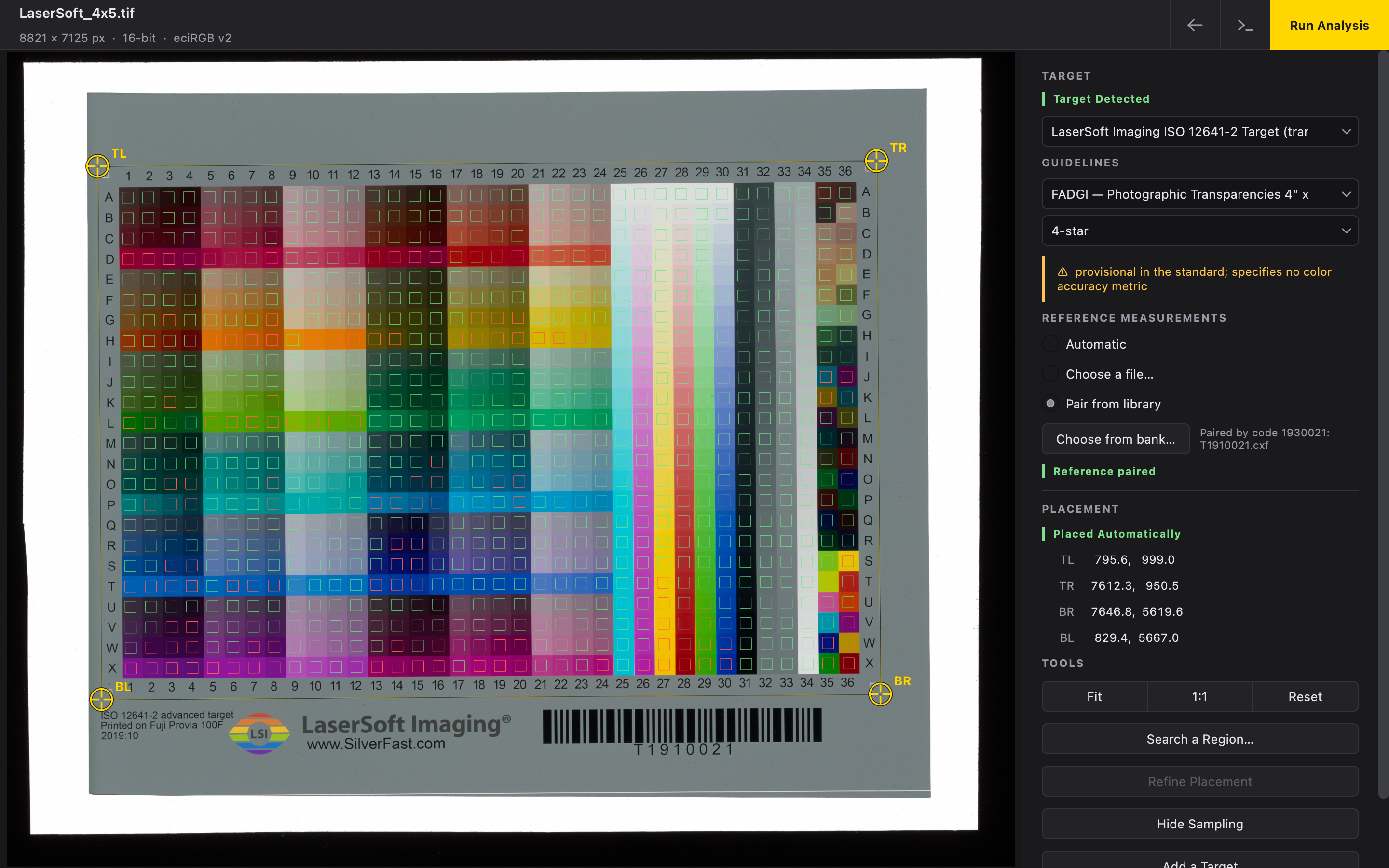
There are three methods by which a target can be detected:
- Automatically during the initial load
- Searching a region
- Fully manually
Deltachrome will always attempt to detect a target during load. If Deltachrome fails, or if it does not detect all targets in an image, the user is encouraged to use Search a Region. This tool allows the user to draw a box around the target they wish to detect. This box must be drawn around the entirety of the target, including a margin around the target’s borders. Search a Region allows Deltachrome’s search to be more focused and helps to increase accuracy. If using Search a Region fails, the user can manually drag the four placement reticles to the appropriate fiducial marks on the selected target. A full listing and illustration of each target’s fiducial marks is available in the Targets section of the Deltachrome documentation.
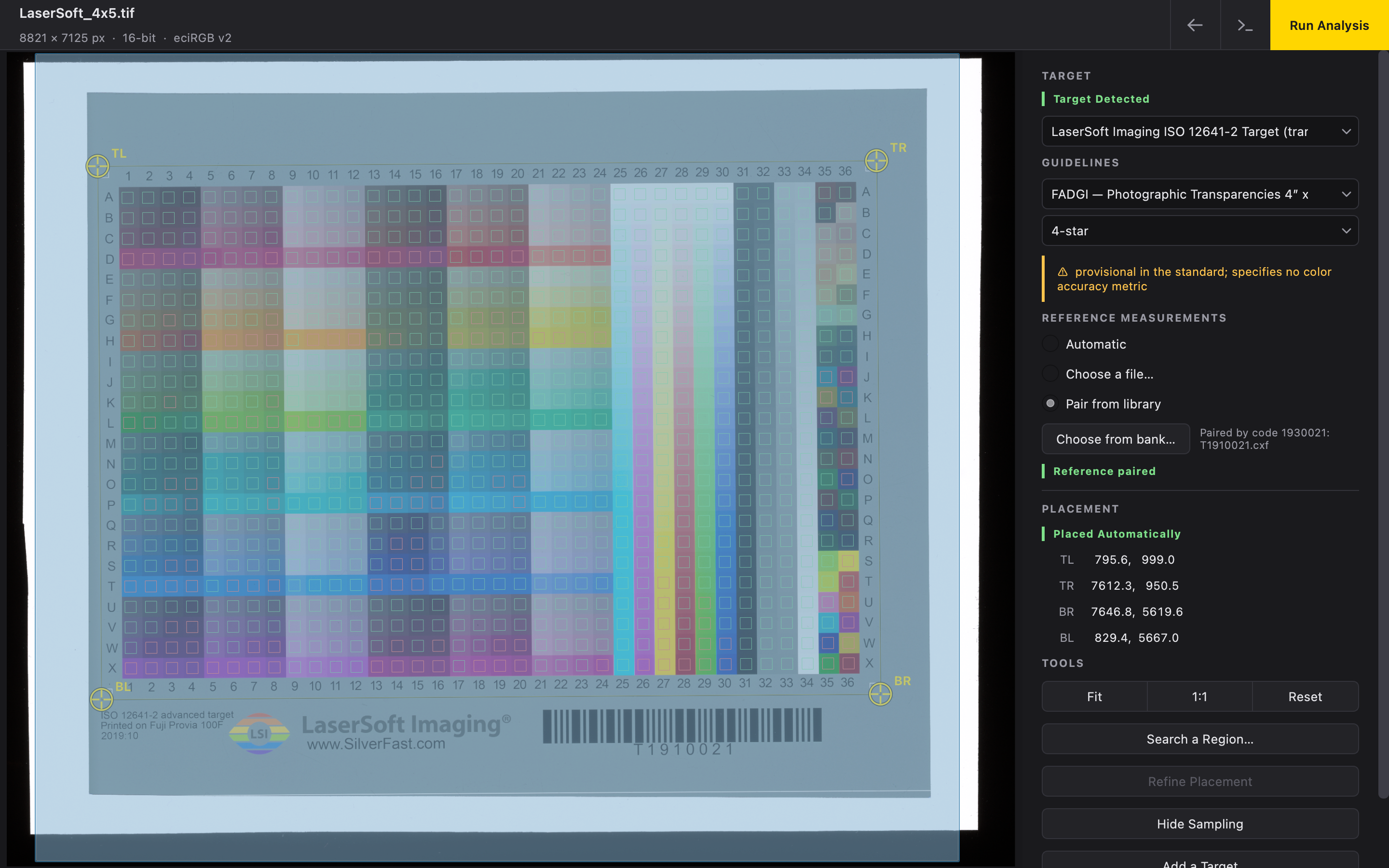
Multi-Target Images
Deltachrome has the ability to analyze multiple targets in a single image. If multiple targets have been detected, they will be numbered and added into a dropdown list in the header of the Placement screen. If Deltachrome has not successfully detected all of them, or if Deltachrome has identified an object that is not an actual target, the user can use the Add a Target and Remove This Target features.
Remove This Target will remove the target that is currently selected in the dropdown list. Add a Target will allow the user to use Search a Region to find the target, or manually select and place the target.
Reference Measurements
In order to obtain a conformance result for targets with color patches, a Reference file of measurement values must be used. There are a few different ways a Reference file can be used in an analysis.
- Deltachrome successfully reads a code in the image that has a corresponding Reference file uploaded in the Reference Bank in the Settings.
- Deltachrome has also implemented OpenQualia Label integration. If Deltachrome detects an OpenQualia Label, a Fetch Measurement button will appear allowing a user to confirm if they would like to download the Reference file to store in the Reference Bank. If the Reference file had previously been saved to the Reference Bank, the Fetch Measurement button will not appear.
- The user selects a Reference file on their system in the Placement screen using Choose a file.
- The user selects an entry in the Reference Bank that they wish to be used for the analysis.
- Choosing Automatic will default to a reference file that is shipped with Deltachrome. These reference files are either Manufacturer measured values, or Batch Means averaged from multiple reference files from a particular target model.
Additional Tools
The user has additional tools available to them when interacting with the Placement screen.
- Fit
- Adjusts the size of the image in the image window.
- 1:1
- Adjusts the zoom of the image to be 1:1.
- Reset
- Discards the Placement and returns the reticles to a default rectangle.
- Refine Placement
- Automatically attempts to snap nearby manually-placed reticles to the correct fiducial marks.
- Hide Sampling / Check Sampling
- Hides and reveals the sampling overlay of the target’s regions of interest.