User Guide
Run Library
Overview
The first screen the user sees when opening Deltachrome is the Run Library. A Run Library is an archive of target analyses, or Runs, that have been saved by the user. It is linked to a physical folder on the user’s system and identified by the folder path in the header. A new Run Library can be created at any time in the Settings by changing the folder. In the same manner, changing the folder can allow the user to access a previous Run Library. Run Libraries can be created for any reason, but users might find it convenient to create one per imaging project or per imaging station.
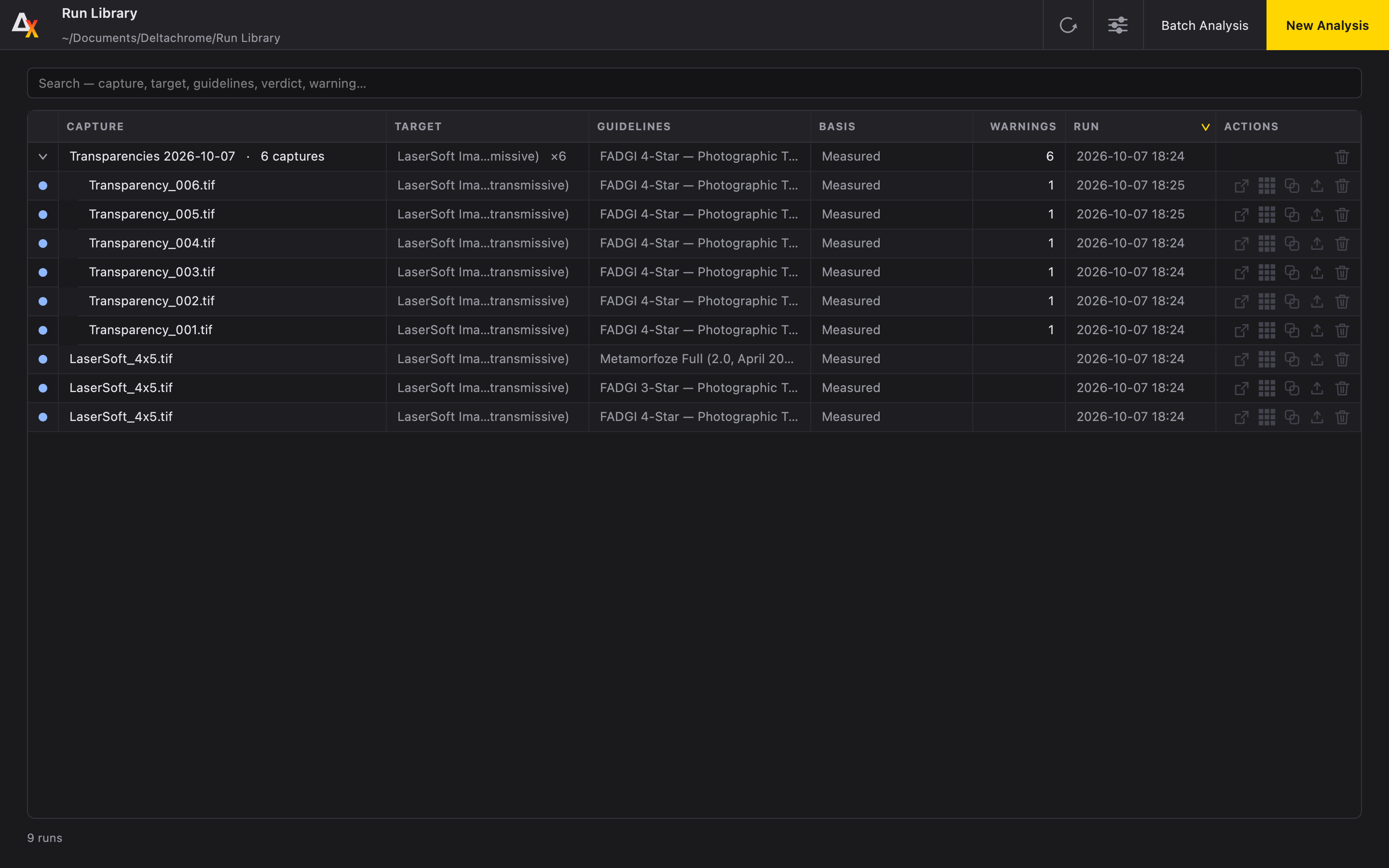
Run Table
The Run Table is a searchable, sortable, and filterable table of all the Runs in a Run Library. With the exception of Batch Runs, each run can have several actions performed on them.
- Open a Run to view its analysis
- Re-analyze a Run
- Copy the command used with Deltachrome’s CLI
- Export the analysis as a .txt, .csv, or .xml
- Delete a Run

Batch Runs
Batch Runs are a series of images that contain the same target that have been analyzed as a Batch. They are most useful when an imaging project or session contains an object-level target in each image. Batch Runs can be identified by a caret in the first column. Clicking on the caret will expand the entry to all the individual Runs in the Batch.
Actions
The Run Library screen allows the user to access Deltachrome’s Settings screen, as well as initiate a New Analysis or a Batch Analysis.