User Guide
Navigating the Analysis
The Analysis Screen
Once a user selects Run Analysis on the Placement screen, the analysis is conducted. The results are displayed on the Analysis screen that follows. The Analysis screen is separated into two main sections: a list of metrics for the selected Guideline on the left, and a detailed explanation of a selected metric in the main window. In addition, the header will display the overall Verdict. Targets that have been analyzed without an individual reference file will obtain an ADVISORY status that accompanies the Verdict.
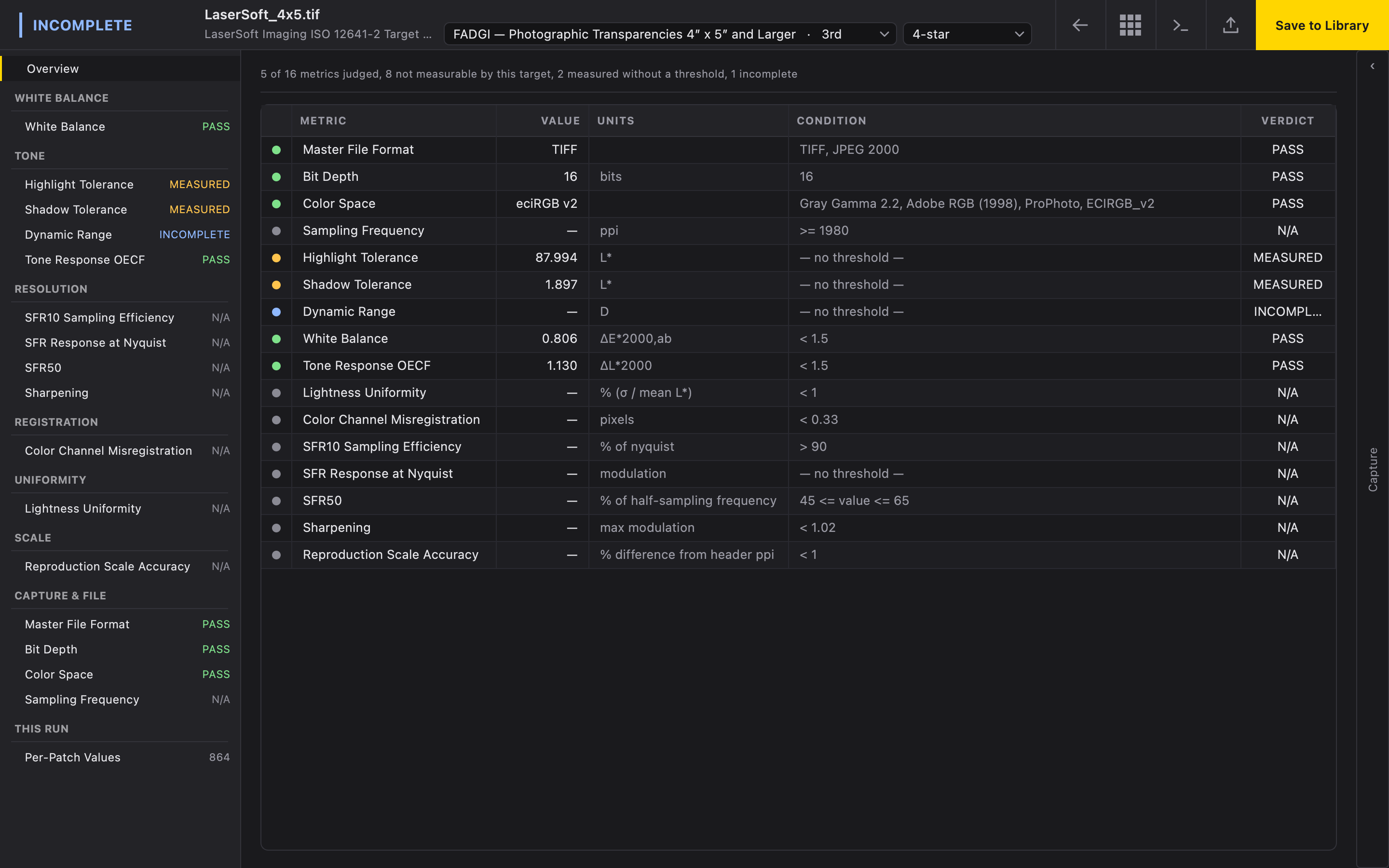
The Analysis screen defaults to an overview showing the result of each metric in a table. These metrics are color-coded to match verdicts. Verdicts can be one of several values.
- PASS
- The metric has passed the Guideline thresholds.
- FAIL
- The metric has failed the Guideline thresholds.
- N/A
- The target does not measure this metric.
- MEASURED
- The Guideline does not require this metric, but it was measured regardless.
- INCOMPLETE
- Deltachrome was unable to measure this metric.
It’s important to note that verdicts will appear with an ADVISORY status any time a target is not analyzed with a user-provided Reference file. The status serves to remind the user that the values used in the calculation may not be accurate to the target’s true measurements.
Inspecting Metrics
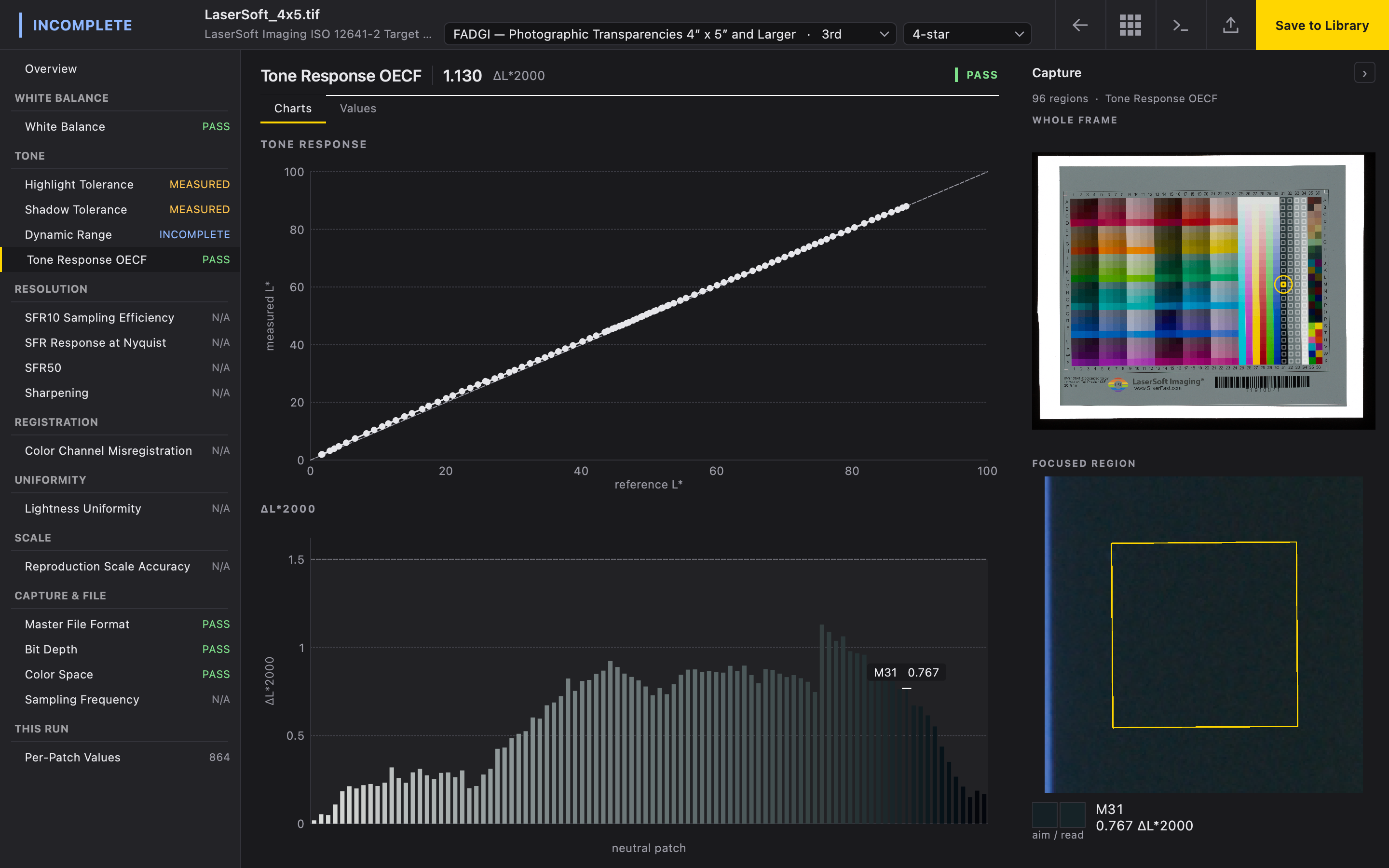
All metrics can be expanded using the lefthand metrics list. Some metrics, such as the Capture & File metrics, have no calculations or measurements associated with them. The ones that do will present in the main window with a Charts tab and a Values tab. The Charts tab shows a graphical representation of the metric along with thresholds set by the selected Guideline. Clicking the Load Capture bar on the rightmost side of the window will reveal the zoomable target capture to provide the user with additional context for the regions of interest. The Values tab is a sortable table of each value that has been calculated as part of this metric.
Additional Information
Below the metrics on the lefthand list sits Per-Patch Values of each color patch measured in the target, along with any Warnings that Deltachrome picked up on during the analysis.
Changing Guidelines
Deltachrome allows the user to change Guidelines using the dropdown lists in the header of the Analysis screen. Verdicts and displayed thresholds will update automatically. When accessing a saved Run, users can change Guidelines by using the Change Guidelines button.
Additional Features
From the Analysis screen, the user has additional features available to them at the top right of the header. Much like the Actions from the entries in the Run Library, the user can jump back to the Placement screen for any reason, copy the command for the Deltachrome CLI, or export the results of the Run. If the user would like to keep the results of this Run in the Run Library, they must use the Save to Library button. If they choose to jump back to the Run Library without saving, the Run will not be saved.