User Guide
Profiling
Implementation
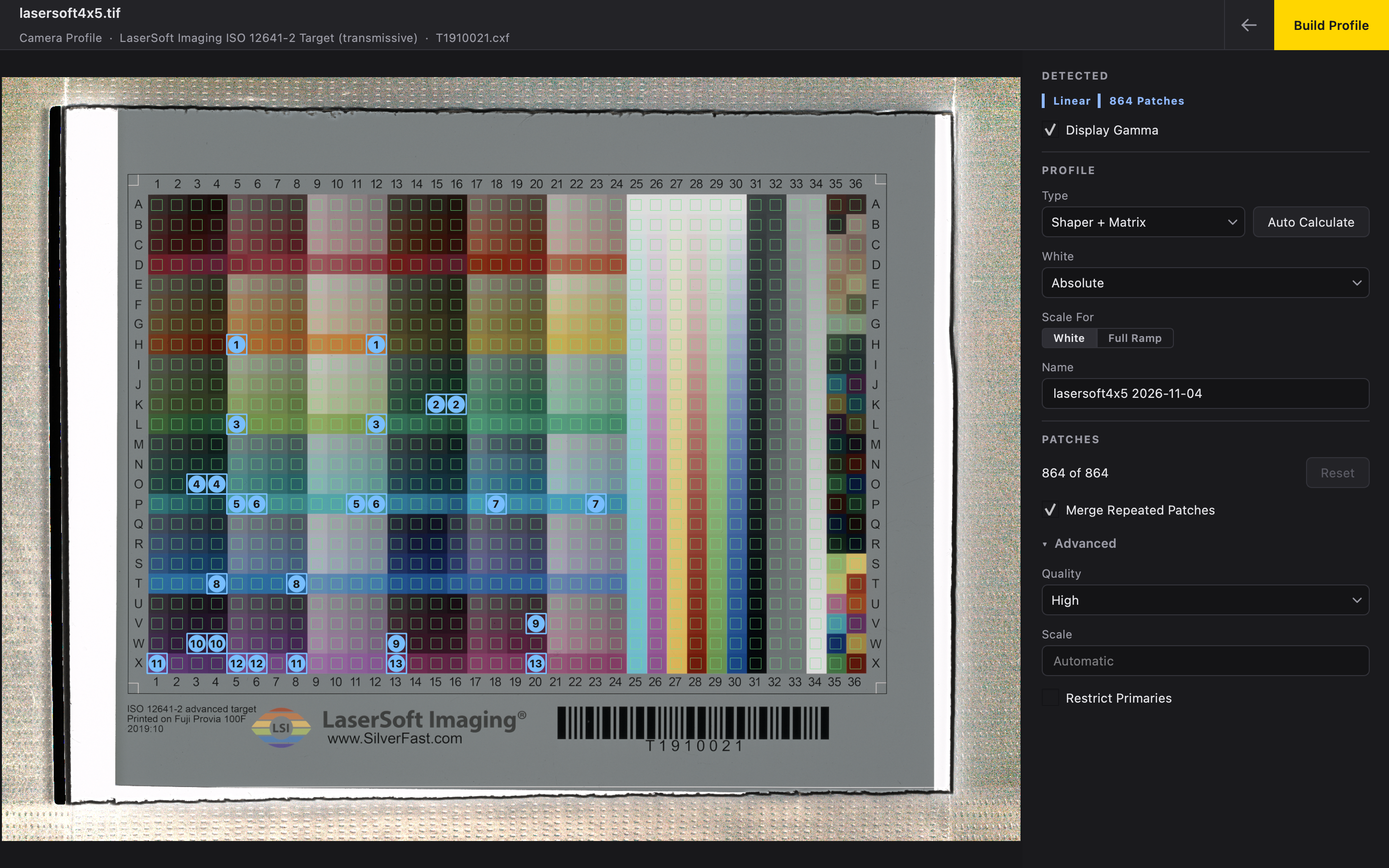
Deltachrome is capable of creating ICC profiles from measured targets in the Placement Screen. The user must select the Build Profile button after a Reference File is chosen or automatically paired. The Profiling Screen is then opened featuring parameters with which to build an ICC profile. Deltachrome implements ArgyllCMS’s ‘colprof’ command with the appropriate parameters needed for input profiles. It’s important to note that the file used to create the profile must be taken from the user’s processing pipeline immediately before the application of the input profile. This file need not carry an embedded color profile and, depending on the software used for image processing, may be linear without a gamma curve. The Display Gamma toggle is purely a visual aid so the user can view linear files with a gamma. This toggle only appears for linear files without an embedded profile. Deltachrome’s profiling feature will ignore embedded profiles for files that carry one.
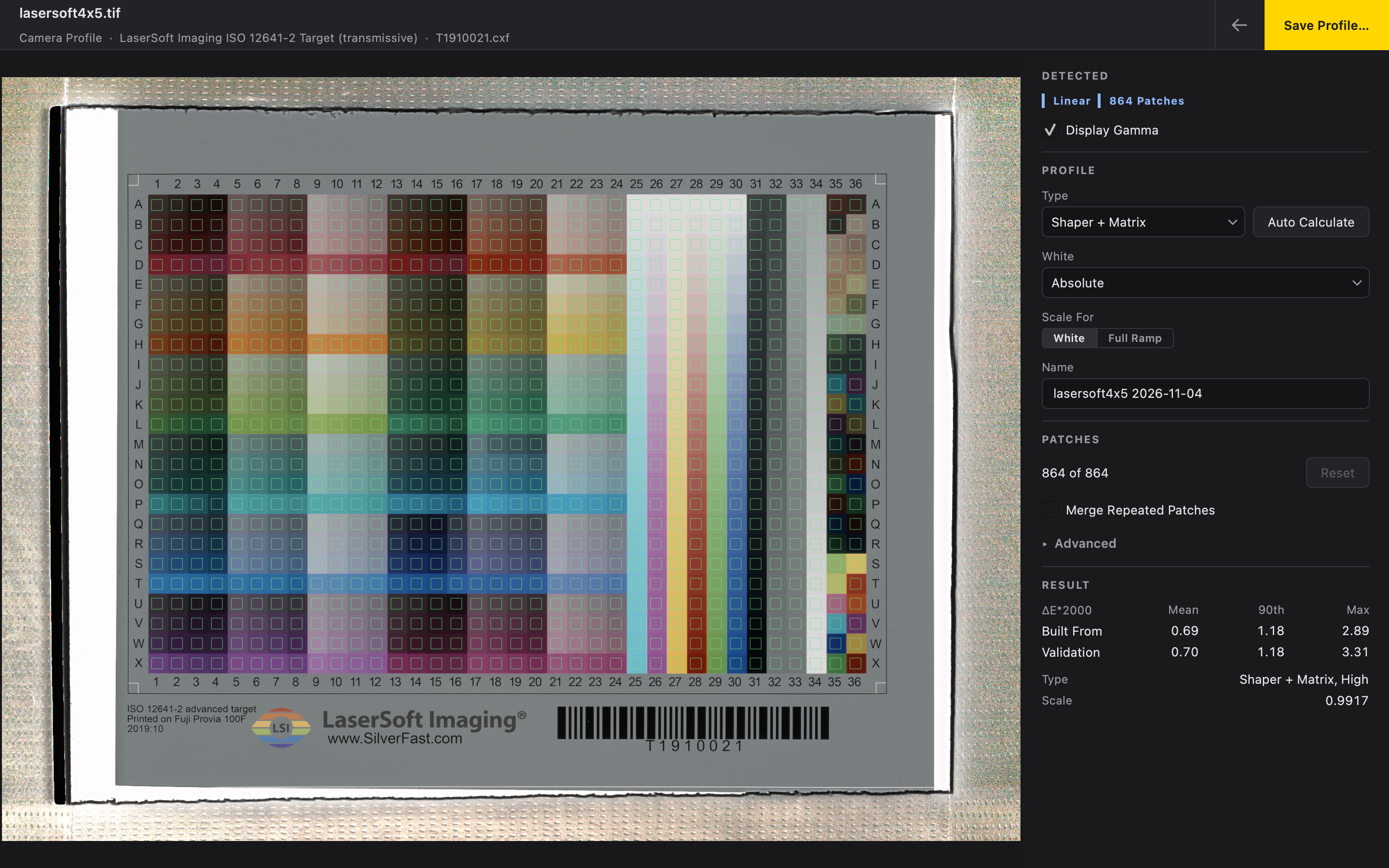
Users can build their profiles automatically or manually. The Build Profile button in the top right corner will initiate the build. Once complete, the button will change to Save Profile, allowing the user to save the built profile.
Automatic Profiling
Deltachrome places an emphasis on automatic profile creation. Depending on the number of usable patches in the profiling target, the user will see one of two automated options in the Type section.
- Under 200 patches
- Automatic is selectable as a dropdown option under Type. Using Automatic will iterate through matrix and shaper combinations to find the optimal results. Table types are excluded.
- 200 patches or more
- Auto Calculate is a separate button beside the Type dropdown. Running through all iterations of matrix, shaper, and table types can take a few minutes and therefore is left decoupled from the Type parameters. Table types are considered in this automation, but only in Low and Medium quality.
Building a profile with Automatic or Auto Calculate will initiate a series of iterations through each profile Type and Quality level. Each iteration will undergo the following steps:
- Deltachrome will divide the target’s patches into five groups.
- Five different profiles will be built, each with one of the five groups withheld from the build.
- Each of the five builds will use their withheld group as a Validation measurement with which to derive the Validation metrics in the Result section.
- A final sixth profile will be built using all the patches, which will be used to derive the Built From metrics in the Result section.
Each iteration is ordered by complexity in regards to Type and Quality level. More complex iterations will only win over less complex ones if they yield better results in both Mean and 90th Percentile metrics.
Standard Parameters
The Type dropdown allows the user to select which type of input profile is created.
The White parameter allows the user to specify how they want to define white on their target. Absolute will keep the target’s white patches as they are measured without balancing them to neutral, and is favorable in most faithful reproduction scenarios. Chart White will balance the target’s white patches to neutral, mapping them to L*=100. The Scaled option with Chart White will scale the profile so that values lighter than the target’s white patches will not clip.
The Scale For selection allows the user to choose between two scaling methods when a Scale value is not specified. Scale For White creates a profile where the target’s brightest white patch matches the measured value. Scale For Full Ramp attempts to create a profile where the target’s full grayscale ramp is considered when trying to reproduce accuracy of the measured values.
Users can input a Name for their profile which will live in the profile metadata and be used as the suggested filename when saving.
Advanced Parameters
Advanced parameters are accessible by clicking the collapsed Advanced section at the bottom of the profiling options.
The Quality selection allows the user to specify the Quality level when creating a manual profile.
Smoothing is an advanced feature that applies to table profiles only and sets how noisy colprof should assume the patch readings are. Higher values yield a smoother profile that assumes patches may appear noisier, ignoring small reading errors. The default 0.5% is applied when the field is left blank or when Auto Calculate is used.
The Scale value allows the user to specify a scale value affecting the L* ramp when creating a profile. When left blank, this value will be automatically calculated. The Scale value can be used for both automatic and manual profiles.
Restricting Primaries is an advanced feature that restricts profiles from being built with XYZ white, black, and primary values that may be prohibited by some software. White Y values will not exceed 1, and black and primary values will remain positive.
Selecting Patches
Deltachrome recognizes that, in select circumstances, users may want the option to deselect patches from their profile build. Simply clicking a patch in the viewing window will toggle that patch off or on. When a file is loaded into the Profiling Screen, Deltachrome will flag patches that are clipping in any color channel, out of gamut, or potentially dirty. These flagged patches will be deselected by default, but the user may reselect them.
Occasionally, targets will contain Repeated patches. While these patches are useful for validation metrics such as Lightness Uniformity, they may not be needed for building a profile. In this instance, selecting Merge Repeated Patches will consolidate these patches into a single point of data for the build. This option will only appear when Deltachrome has detected repeating patches.